Poor man's VPN over SSH
FZU account required
This uses the institute SSH server limba.fzu.cz, so you need an FZU institute account
(your main e-mail username and Kerberos password), not just a Phoebe account.
Using traffic tunneling over a SOCKS tunnel, especially through SSH, offers several benefits, like security, encryption and posibility to access services available from FZU internal networks only.
To configure Firefox to tunnel traffic over a SOCKS tunnel created by SSH, you can follow these steps:
Create an SSH tunnel
Open a terminal or command prompt on your local machine and use the following command to create an SSH tunnel with dynamic port forwarding:
Replace user with your main (email) institute username, log in with your Kerberos password.
Configure Firefox
Open Firefox and follow these steps:
Open the preferences
- On Windows and Linux, click on the three horizontal lines in the top-right corner, then select "Options."
- On macOS, click on "Firefox" in the menu bar, then select "Preferences."
Go to network settings
- In the Preferences/Options page, select "General" on the left sidebar, scroll down to the "Network Settings" section.
Configure proxy settings
- Click on the "Settings..." button next to "Connection."
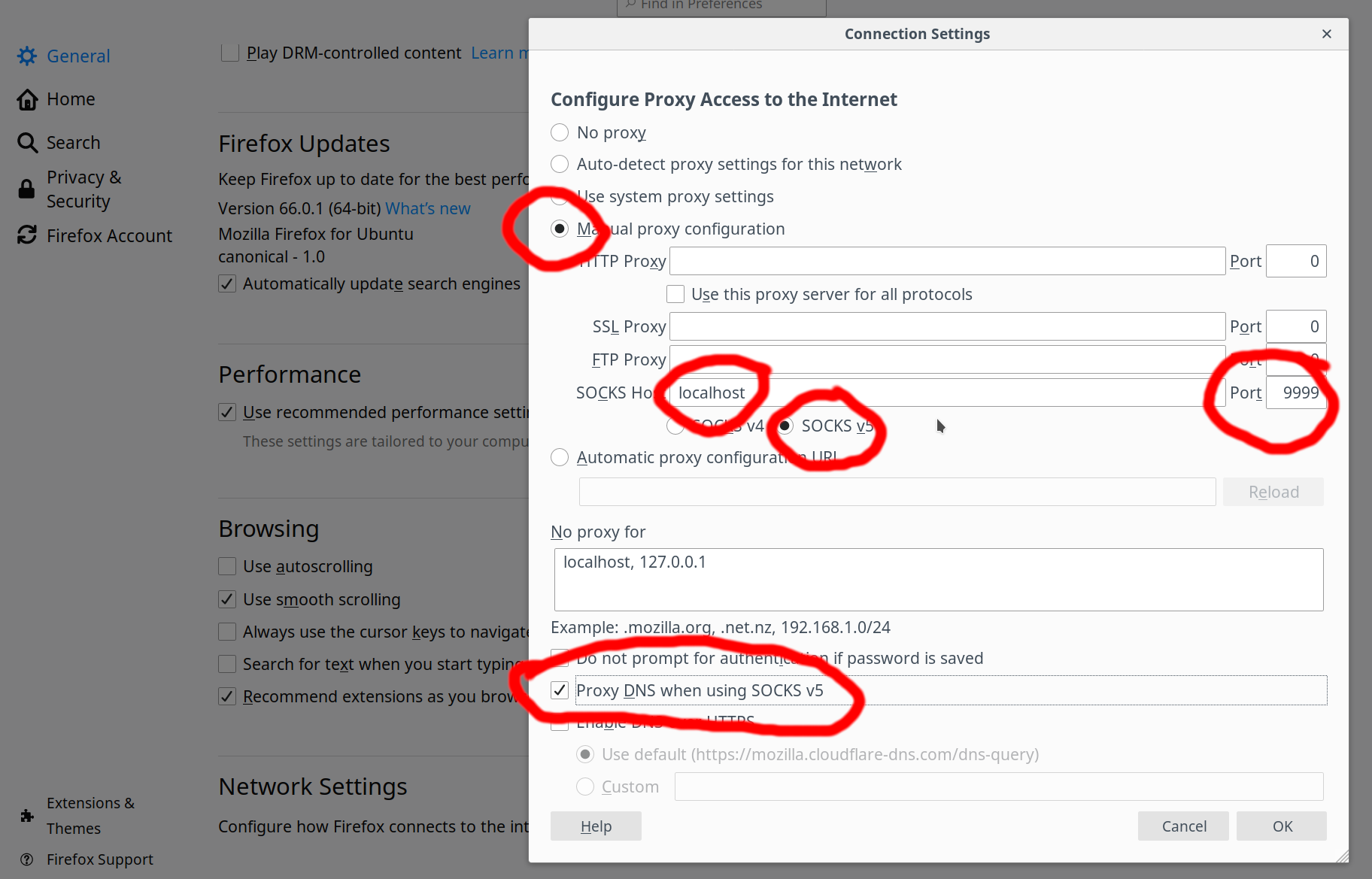
- In the Connection Settings window, choose the "Manual proxy configuration" option
Enter the SOCKS host
- In the "SOCKS Host" field, enter localhost as the host and
1080as the port (or the port you specified in the SSH command).
Select SOCKS v5
- Choose "SOCKS v5" as the type of proxy.
Configure "No proxy for"
- You may want to add
localhost, 127.0.0.1to the "No Proxy for" field to prevent the SSH tunnel itself from being proxied.
Click OK
- Click "OK" to save the changes and close the Connection Settings window.
Screenshot: Firefox
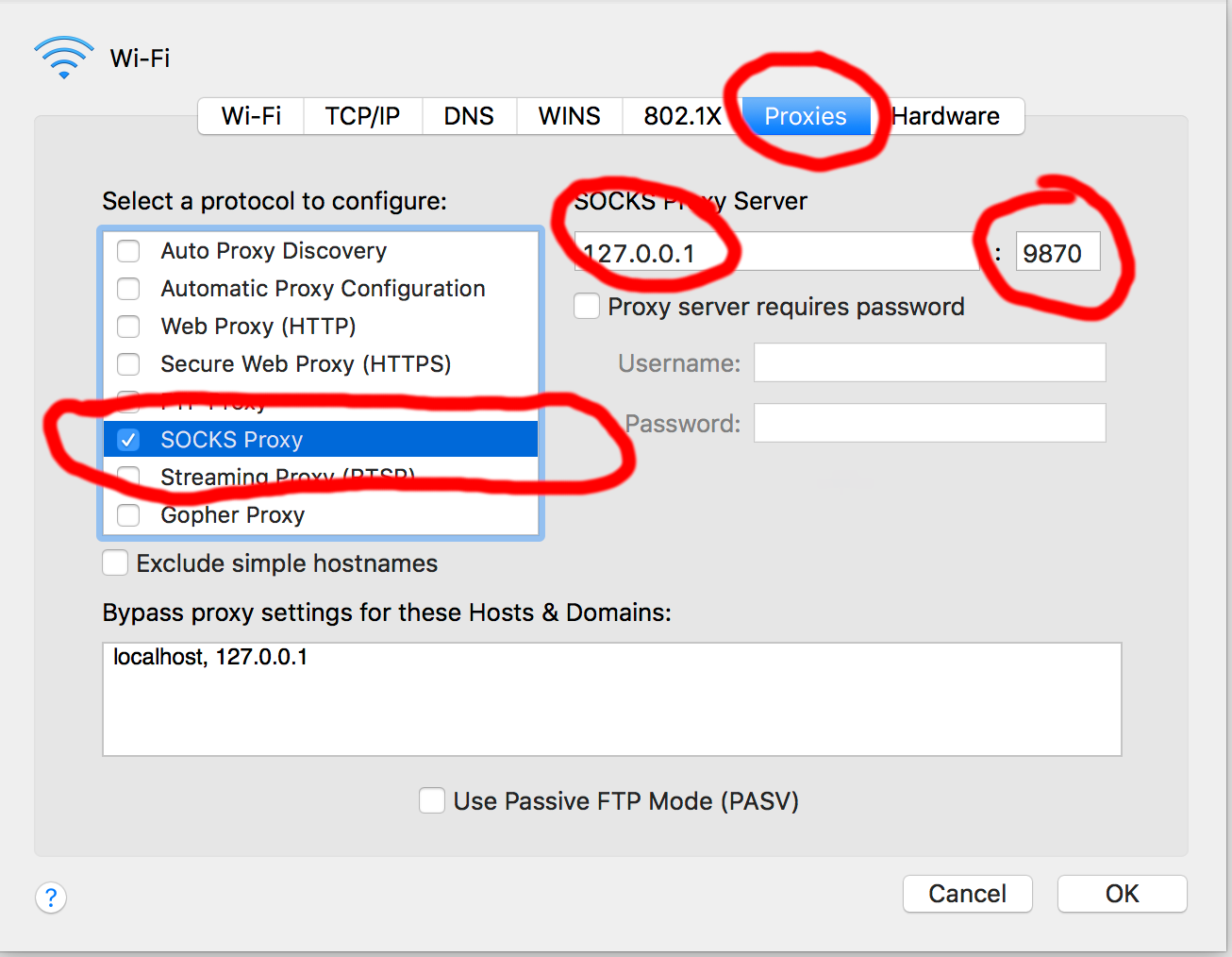
System-wide configuration on macOS