VS Code remote tunnel on Phoebe
With a remote tunnel, VS Code on your laptop edits files and runs code on a Phoebe compute node. The tunnel runs as a Slurm job, so it gets its own CPUs (and GPUs, if you ask for them) instead of sharing the login node.
Prepare your workstation
- Make sure you have a working GitHub account.
- Install VS Code on your workstation or laptop. Installers are available for most Linux distributions, macOS and Windows.
- In VS Code, install the Remote Development extension pack.
Download the VS Code CLI (first use only)
Log in to Phoebe with SSH, then download and unpack the VS Code command line tool:
curl -L 'https://code.visualstudio.com/sha/download?build=stable&os=cli-alpine-x64' --output vscode_cli.tar.gz
tar -xf vscode_cli.tar.gz
Check that the code binary is there:
Start the tunnel in a Slurm job
The tunnel stops when its job ends, so start it inside a screen session. Here the session is
named "tunnel":
Inside the screen session, start the tunnel as an interactive job. This example asks for 4 CPUs and 16 GB of RAM for 8 hours on a CPU node, and names the tunnel "Phoebe":
srun --partition=cpu_int --job-name "code_tunnel" --cpus-per-task=4 --mem=16G --time=08:00:00 --pty ./code tunnel --name "Phoebe" --accept-server-license-terms
To use a GPU from VS Code, ask for one on a GPU node instead. Request GPUs only while you use them; see GPU jobs.
srun --partition=gpu_int --job-name "code_tunnel" --gres=gpu:a100:1 --cpus-per-task=8 --mem=64G --time=08:00:00 --pty ./code tunnel --name "Phoebe" --accept-server-license-terms
Detach from the screen session with Ctrl+A, then d (see screen sessions); the tunnel keeps running. Reattach later
with screen -r tunnel.
Log in with GitHub
The first time, code tunnel asks how to log in. Choose your GitHub account:
[jose@login1 codetunnel]$ srun --partition=cpu_int --job-name "code_tunnel" --cpus-per-task=4 --mem=16G --time=08:00:00 --pty ./code tunnel --name Phoebe --accept-server-license-terms
srun: job 1426008 queued and waiting for resources
srun: job 1426008 has been allocated resources
*
* Visual Studio Code Server
*
* By using the software, you agree to
* the Visual Studio Code Server License Terms (https://aka.ms/vscode-server-license) and
* the Microsoft Privacy Statement (https://privacy.microsoft.com/en-US/privacystatement).
*
✔ How would you like to log in to Visual Studio Code? · Github Account
To grant access to the server, please log into https://github.com/login/device and use code ABCD-ABCD
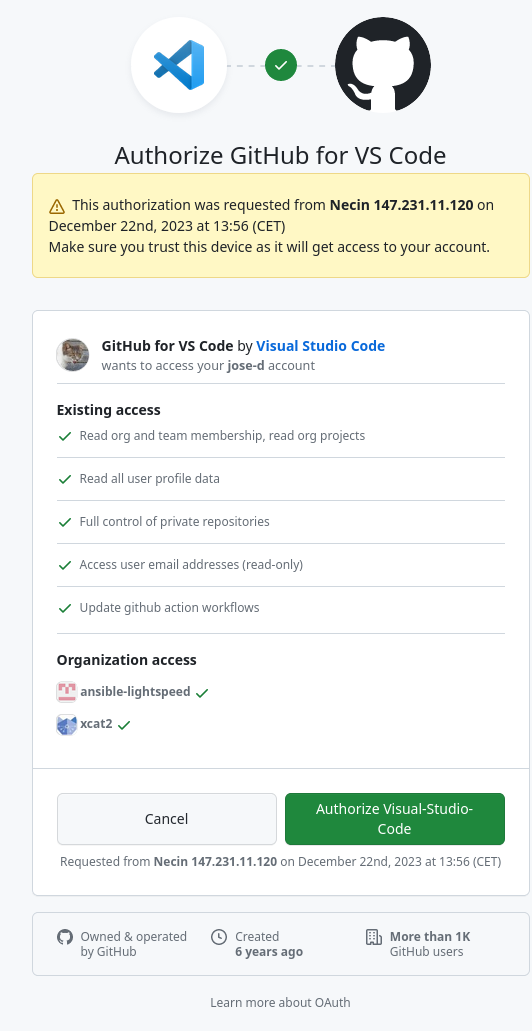
Open the URL it shows, typically the device login page https://github.com/login/device, and type in the code.
Connect from your local VS Code
Once you have authorized VS Code, connect from your local VS Code to the registered tunnel:
Stop the tunnel
The tunnel ends when the job reaches its time limit. To stop it earlier, reattach with
screen -r tunnel and press Ctrl+C, or cancel the job with scancel <jobid>.