Google Colab on Phoebe
The Colab SSH Bridge Firefox add-on runs the Python kernel of a Google Colab notebook on a Phoebe compute node. You keep using Colab in your browser; the code runs in a Slurm job with the CPUs, memory and GPUs you ask for, and can read your files on Phoebe.
Beta
The add-on is new and still changing. It works on Linux only (tested on Ubuntu 24.04 and later). Report problems to the cluster administrator.
How it works
The add-on has two parts: the Firefox extension, and a small companion program that Firefox starts on your computer. When you start a backend, the companion logs in to Phoebe over SSH, submits a Slurm job that starts a Colab-compatible runtime in an Apptainer container, and connects it to a port on your computer. Colab then uses that port as a local runtime.
- Your SSH key stays in your SSH setup; the add-on stores no passwords or keys.
- The runtime listens only on the compute node itself, and the port on your computer only on
127.0.0.1. The connection URL contains a secret token: don't share it. - Notebook code runs as your Phoebe user and can read and change your files there. Only run notebooks you trust.
- The job uses your Slurm account like any other job. It keeps running when you close Firefox, until you stop it or its time limit ends.
What you need
- Linux with Python 3.11 or later (
python3 -V). Ubuntu 22.04 ships 3.10 and is not supported. - Firefox 140 or later. The snap Firefox that Ubuntu installs by default works.
- A Phoebe account that you can log in to with an SSH key, without typing a password.
| Download | What it is |
|---|---|
| colab-ssh-bridge-0.2.3.xpi | the Firefox add-on (step 3) |
| install.sh | installs the companion (step 2) |
| phoebe_cpu.yaml | a ready Phoebe CPU profile to import (step 4) |
| uninstall.sh | removes the companion again |
1. Check SSH to Phoebe
The companion runs SSH in the background and cannot answer password or passphrase prompts.
This command must print ok without asking anything:
If your Phoebe login name differs from the one on your computer, add it to ~/.ssh/config:
If it fails with Permission denied (publickey), create a key
and install it. A key with a passphrase works while it is loaded in your SSH agent: the Ubuntu
desktop usually loads it at login; otherwise run ssh-add once per session.
2. Install the companion
The companion installs into your home directory and needs no sudo:
It checks Python, downloads the companion, verifies its SHA-256, installs it to
~/.local/share/colab-ssh-bridge, and registers it with Firefox in
~/.mozilla/native-messaging-hosts. You can read install.sh first.
3. Install the add-on
- In Firefox, click colab-ssh-bridge-0.2.3.xpi.
- Firefox says it prevented the site from asking you to install software. Click Continue to Installation, then Add.
- The add-on icon appears in the toolbar. If it is hidden, find it under the puzzle-piece menu and pin it.
The add-on is signed by Mozilla and updates itself, like add-ons from the Firefox add-on store.
Snap Firefox: the snap Firefox runs in a sandbox and asks Ubuntu for permission to start the companion. The first time the add-on connects, Ubuntu asks whether Firefox may start Colab SSH Bridge. Choose Allow; Ubuntu remembers the answer. If you clicked Deny, clear the stored answer and restart Firefox:
gdbus call --session --dest org.freedesktop.impl.portal.PermissionStore \
  --object-path /org/freedesktop/impl/portal/PermissionStore \
  --method org.freedesktop.impl.portal.PermissionStore.DeletePermission \
  webextensions cz.ceico.colab_ssh_bridge snap.firefox
4. Create a Phoebe profile
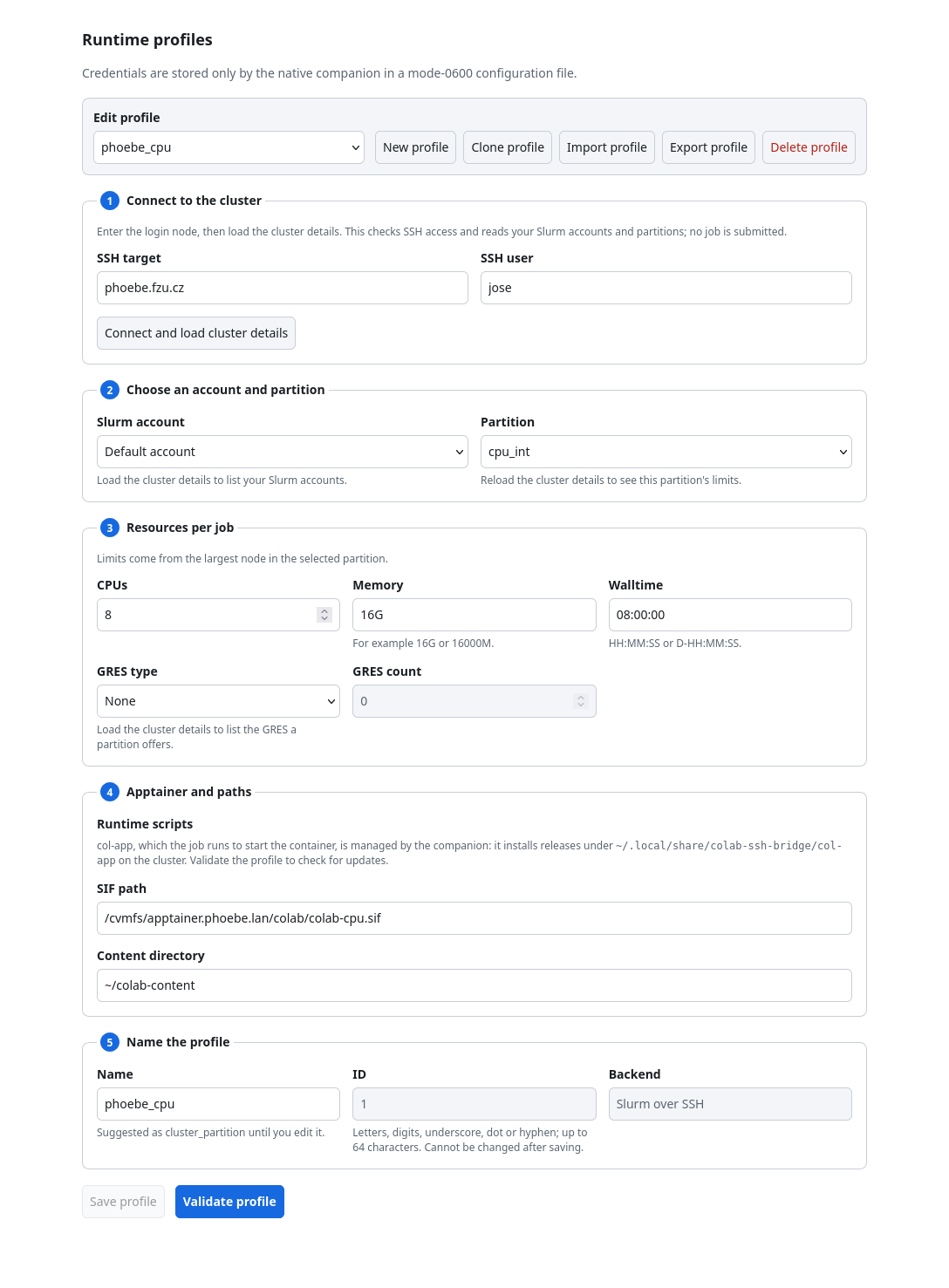
A profile says where and how large a job to run. Open the profile editor with the gear button in
the add-on's toolbar popup, or in about:addons → Colab SSH Bridge → Preferences.
- Download phoebe_cpu.yaml, click Import profile and choose
it. It asks for 8 CPUs, 16 GB and 8 hours in the
cpu_intpartition. - Enter your Phoebe login in SSH user, or leave it empty if
~/.ssh/configsets it. - Click Connect and load cluster details. On first contact, compare the host key fingerprint with a trusted one before you click Trust and connect.
- Click Validate profile. If it reports that col-app is missing, click Install latest col-app: this puts the small runtime scripts into your Phoebe home. Validation submits no job.
- Click Save profile.
For GPU work, choose the rocky10 partition and select a GRES type such as gpu:a100; the
editor shows what the partition offers and refuses values no node can provide. See
GPU jobs for the GPU partitions and limits.
5. Start a backend and connect Colab
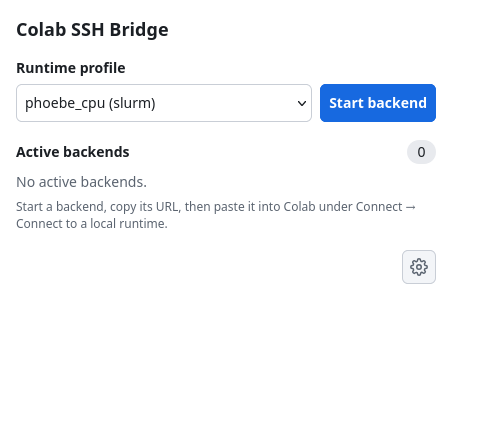
- Click the add-on icon in the toolbar, select your profile, and click Start backend.
- The row shows the Slurm job waiting in the queue, then the runtime starting. That can take a few minutes.
- When the row is ready, click its copy button to put the connection URL on the clipboard.
- In Colab, open Connect (top right) → Connect to a local runtime, paste the URL, and click Connect.
The job keeps running when you close Firefox and reattaches when you open it again. When you are done, click Stop on the row so the allocation is freed for others; otherwise it runs until its time limit.
Troubleshooting
| Symptom | Fix |
|---|---|
| The popup asks you to install the companion | Run the command from step 2, then click Retry in the popup. |
| The popup keeps waiting for the companion | Snap Firefox was denied permission. Clear it as shown in step 3, then restart Firefox. |
Permission denied (publickey) when connecting |
Repeat step 1. If the key has a passphrase, run ssh-add. |
| The job stays queued | The partition is full; see why a job is waiting. |
| Anything else | Open the Browser Console with Ctrl+Shift+J; companion messages appear there. Send those lines to the cluster administrator. |
Uninstall
Stop any running backend first, or cancel its job on Phoebe with scancel. Remove the add-on
in about:addons, then remove the companion:
This disables the companion and moves its files aside so they can be restored. Your profiles in
~/.config/colab-ssh-bridge are kept; delete that directory to remove them too.