Remote desktop in Open OnDemand
Open a graphical Linux desktop running on a Phoebe compute node in your browser, for example to use Wolfram Mathematica. First log in to Open OnDemand.
Start a desktop session
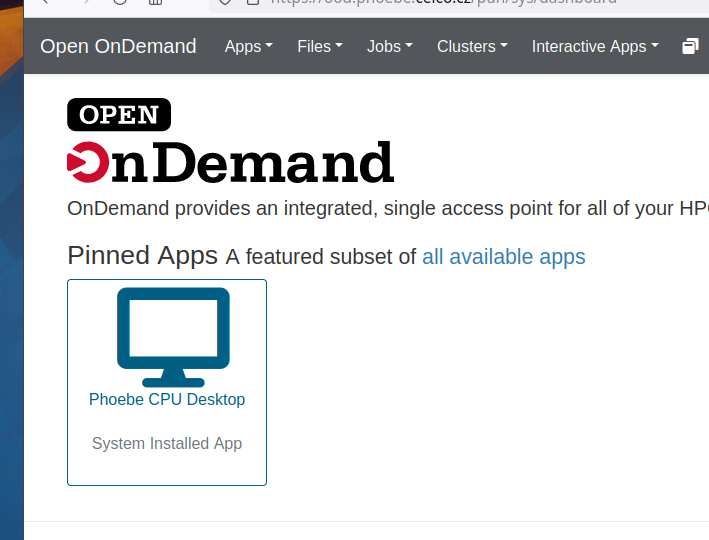
Click the Phoebe CPU Desktop icon.
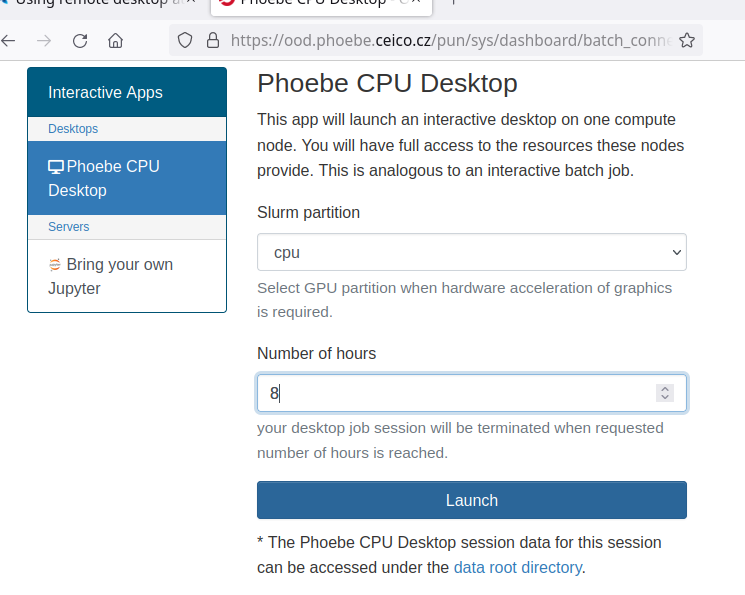
In the form, set how many hours the session may run (e.g. 8) and click Launch. This submits the desktop session as a job to Slurm.
Wait for the job to start
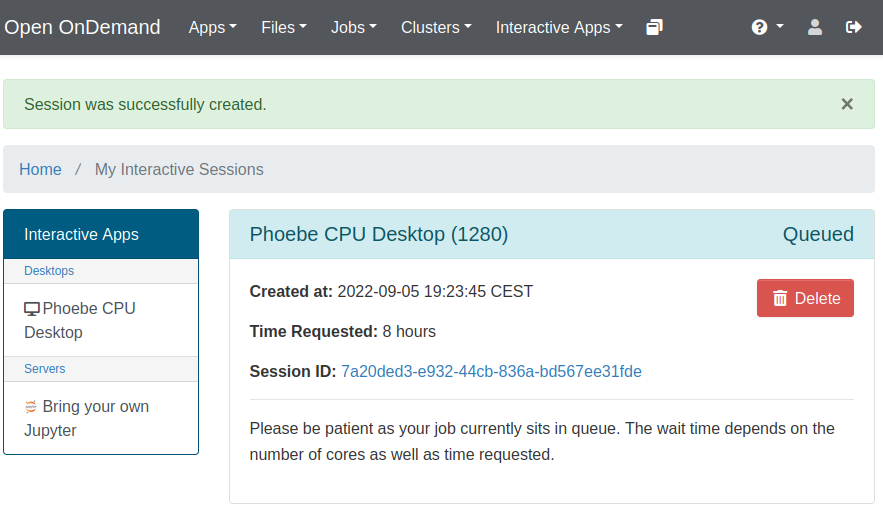
The session is first shown as Queued, with a light blue header.
Open the desktop
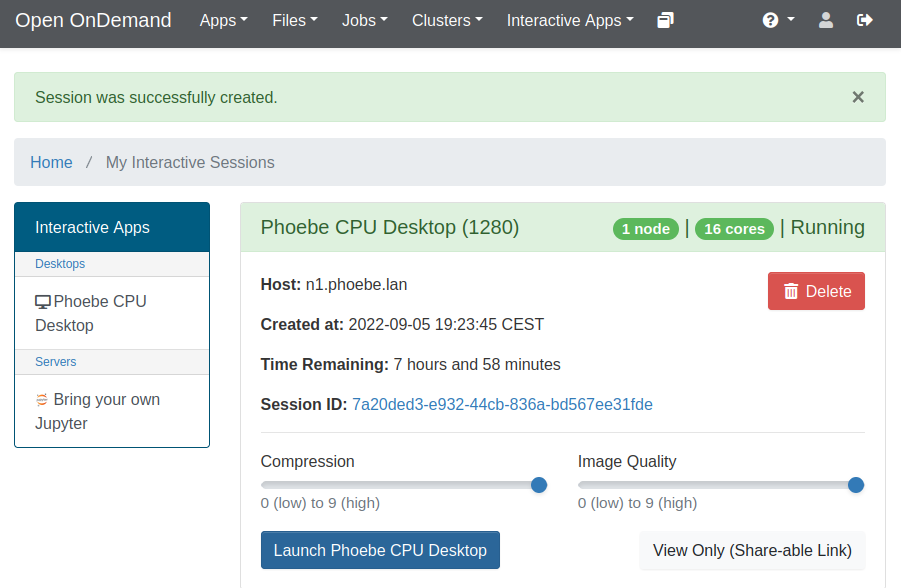
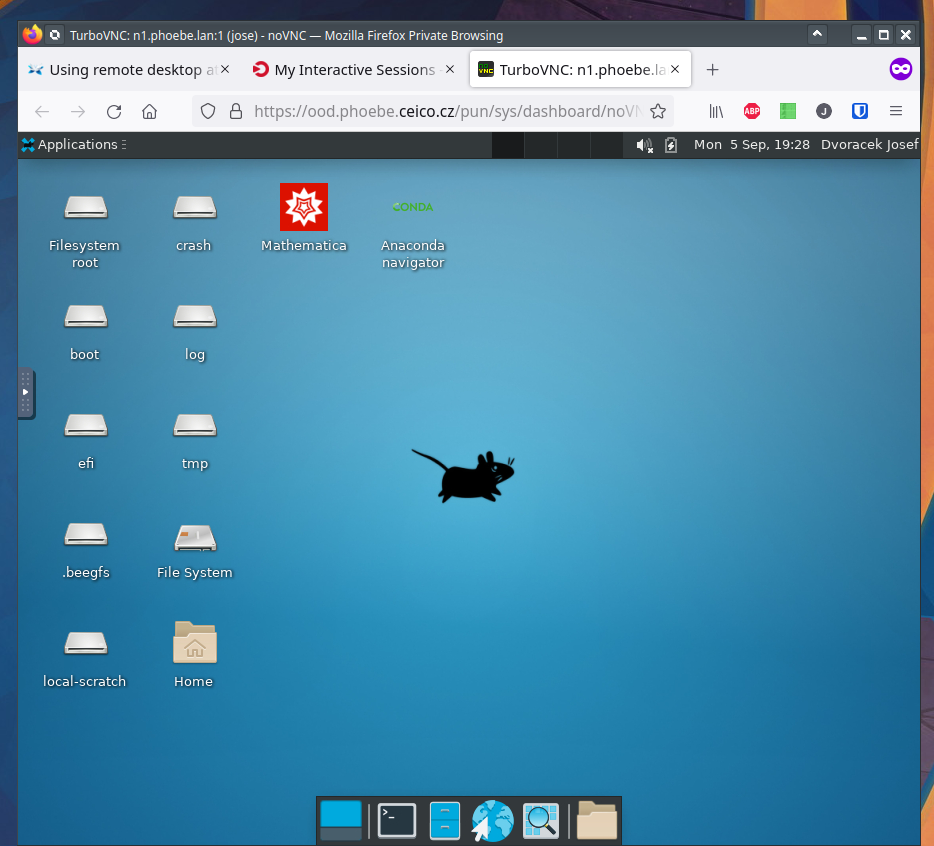
When Slurm has found resources, the header turns green and a blue Launch Phoebe CPU Desktop button appears. Set both Compression and Image Quality to 9 (the highest) for the sharpest picture, then click the button. The desktop opens in a new browser tab.
To come back to the session later or end it, see reconnect and end a session.