Create an SSH key pair
Phoebe and Koios accept only SSH key logins. A key pair has two parts: a private key that stays on your computer, and a public key that you send to the administrators.
If you do not have an SSH key pair yet, open a terminal and run:
ssh-keygen then asks two questions:
- Enter file in which to save the key: press Enter to accept the default
location (
~/.ssh/id_ed25519). - Enter passphrase: type a strong passphrase and repeat it. If your disk is encrypted, you may leave it empty and just press Enter twice.
Example output
Generating public/private ed25519 key pair.
Enter file in which to save the key (/home/testuser/.ssh/id_ed25519):
Created directory '/home/testuser/.ssh'.
Enter passphrase (empty for no passphrase):
Enter same passphrase again:
Your identification has been saved in /home/testuser/.ssh/id_ed25519
Your public key has been saved in /home/testuser/.ssh/id_ed25519.pub
The key fingerprint is:
SHA256:SLKcljiOmsdTubEGeG+6QP+nDs0NoLciBA71guz8BXQ testuser@hostname
The key's randomart image is:
+--[ED25519 256]--+
|  .. E           |
|.o...            |
|+..oo .          |
|* .+o* .         |
| Oo.*+. S        |
|+o*oO o          |
|++.O * .         |
|oo= O  .         |
|o.o*.+o          |
+----[SHA256]-----+
Print your public key and send it to the CEICO HPC administrator:
Warning
Never share the private key ~/.ssh/id_ed25519 (the file without .pub).
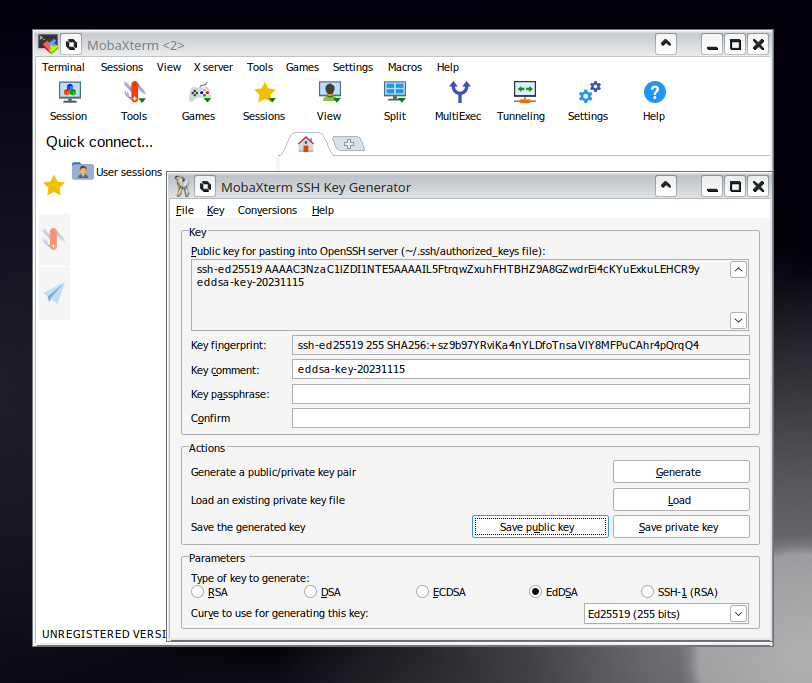
Install MobaXterm, a terminal for Windows with a built-in SSH client, then:
- Click Tools → MobaKeyGen.
- Choose the key type EdDSA (Ed25519).
- Click Generate and move your mouse over the blank area to generate some randomness.
- Type a strong passphrase into Key passphrase and repeat it in Confirm passphrase.
- Click Save private key and save it somewhere safe (e.g. your home directory). The
file has the extension
.ppk. - Copy the Public key for pasting into OpenSSH server field and send it to the CEICO HPC administrator (e.g. by e-mail or Slack).
Warning
Never share the private key file (.ppk).
Next: request an account with your public key.