Connect to Phoebe and Koios with SSH
Note
Before your first login, you need an account. The same account and SSH key work on Phoebe and Koios.
You reach each cluster through its front-end (login) node: phoebe.fzu.cz for Phoebe and
koios1.fzu.cz for Koios. Your username is your FZU "Kerberos" username, usually the part of
your e-mail address before @. Only SSH key logins are accepted.
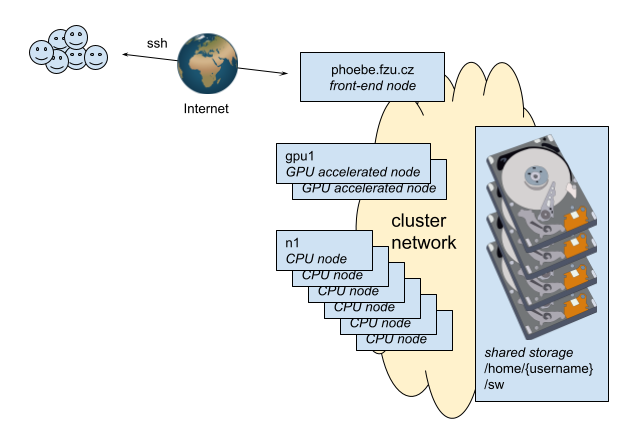
How you reach Phoebe: everything goes through the front-end node phoebe.fzu.cz.
Connect
The SSH client is built into Linux and macOS. Open a terminal and run one of:
To make this shorter, create ~/.ssh/config with an entry for each cluster. Replace
<username> with your FZU username.
Host phoebe
        Hostname phoebe.fzu.cz
        User <username>

Host koios
        Hostname koios1.fzu.cz
        User <username>
Then ssh phoebe or ssh koios is enough.
We recommend MobaXterm, a terminal with a built-in SSH client and X server. Create a profile for Phoebe:
- Click Session and then SSH.
- Fill in the remote host as
phoebe.fzu.cz. - Tick Specify username and fill in your FZU username.
- Click "Advanced SSH settings".
- Tick Use private key and select your private key (
.ppk) file. - Click OK.
For Koios, create a second profile the same way with the remote host koios1.fzu.cz.
To connect, click the profile in the left column. A console window opens.
Windows 10 and 11 also include an OpenSSH client: the ssh commands from the Linux / macOS
tab work in PowerShell with a key created by ssh-keygen.
Check the host key on first connection
The first time you connect, SSH shows the server's key fingerprint and asks whether to trust it. Continue only if it matches the one below. Both login nodes use only an ED25519 host key:
| Host | ED25519 key fingerprint |
|---|---|
phoebe.fzu.cz |
SHA256:xy6+Upes9O4LWWQkME7TjWsmotoTOMlZMSBBWg+j2Zk |
koios1.fzu.cz |
SHA256:iIOuILdupxCyIhkFKNjlsRP1hs/cFHvuBKu9XF8HVFQ |