Set up a passkey for the external portal
The external Open OnDemand portal, ext.phoebe.fzu.cz, is reachable
from anywhere. You sign in to it at id.phoebe.fzu.cz with a passkey instead of a password.
A passkey lets you sign in without requesting a new one-time login link each time. This guide
stores the passkey in Bitwarden in Firefox.
The internal portal uses your FZU Kerberos password instead and needs no passkey.
Before you start
- For your first Phoebe login, an administrator will send an invitation link or login code by e-mail.
- The invitation link or code can be used only once. Keep that browser tab open until you have finished setting up the passkey.
1. Install Bitwarden in Firefox
Open the Firefox add-ons site, search for Bitwarden Password Manager, and install the extension.
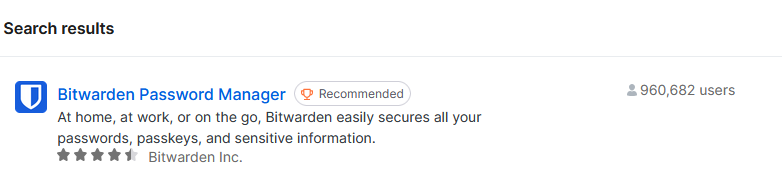
Open the Bitwarden extension and sign in to your existing Bitwarden account. If you do not have an account yet, create one first.
2. Open the passkey settings
After your first login, open your account information. In the Passkeys section, select Add passkey.

3. Save the passkey in Bitwarden
Bitwarden should open a pop-up asking to save the passkey. Confirm the prompt to continue.
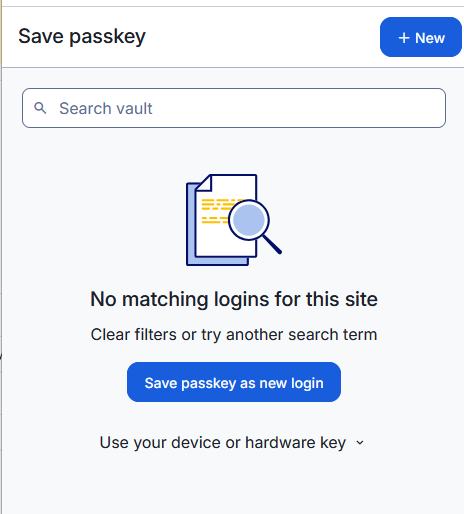
Bitwarden passkey prompt
4. Name and confirm the passkey
You may give the passkey a recognizable name. The default name is "Bitwarden Passkey". Confirm the creation and check that the new passkey appears in your account settings.
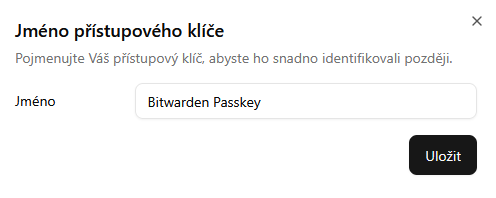
Naming the passkey

Saved passkey
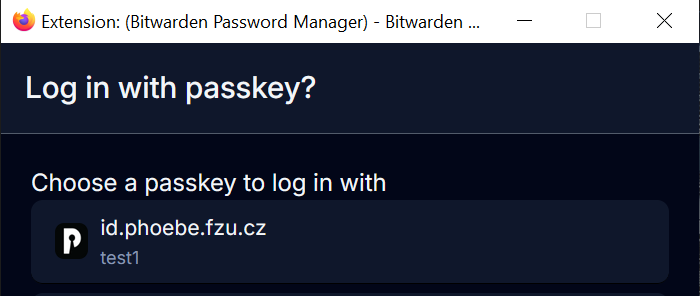
5. Sign in with the passkey
On later visits, select Authenticate. Bitwarden will offer the saved passkey; choose it to sign in. Bitwarden may ask for your vault master password after the device has been locked.